Kimi Code CLI
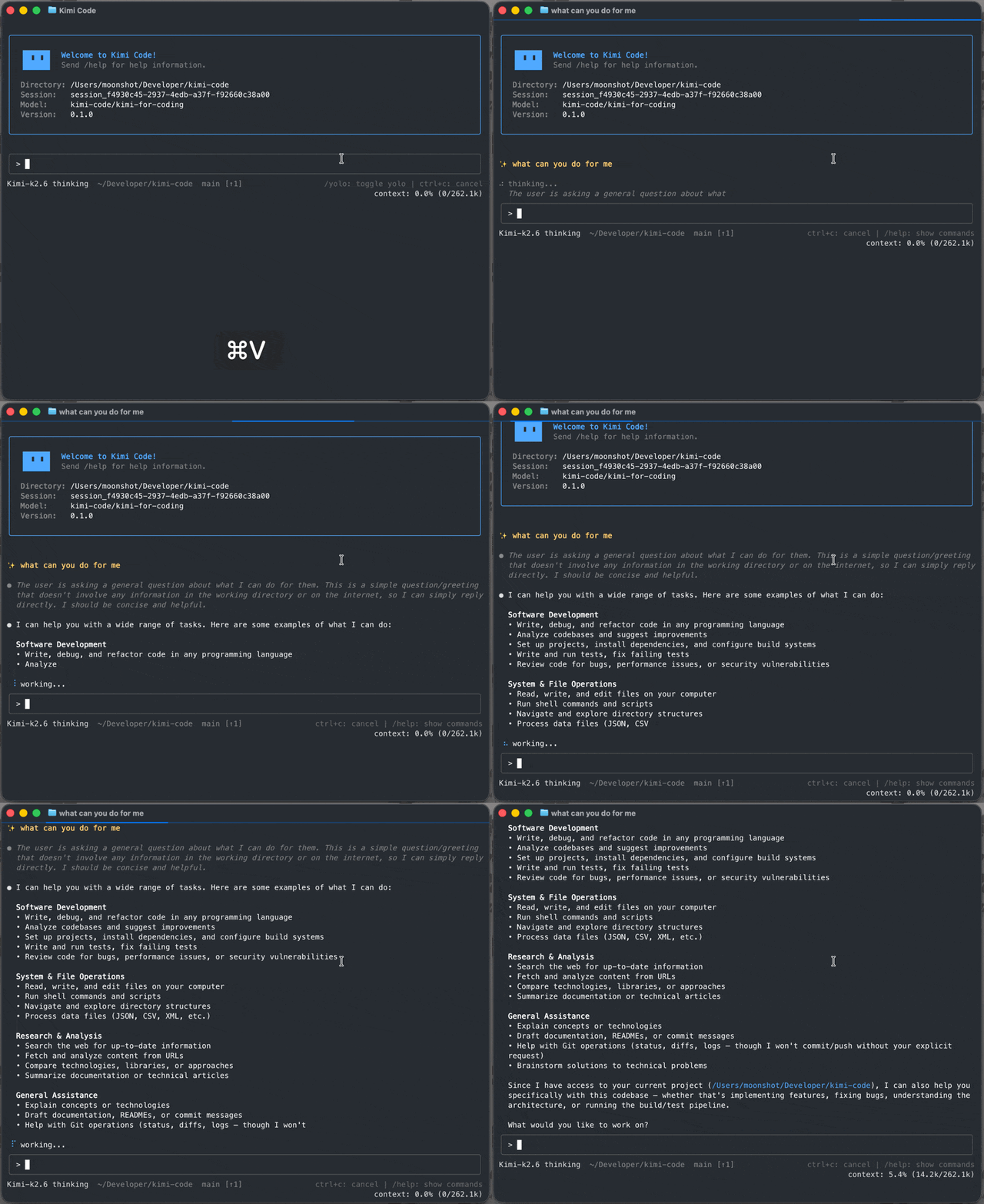
Kimi Code CLI is an AI coding agent that runs in your terminal, capable of reading and editing code, running shell commands, searching files, and fetching web pages. It solves the problem of automating coding tasks interactively within a terminal environment, and is designed for developers who want an AI assistant integrated into their workflow. It works out of the box with Moonshot AI's Kimi models and can be configured with other compatible providers.
✨ Key features
- Single-binary distribution with one-command install, no Node.js required.
- Blazing-fast startup with TUI ready in milliseconds.
- Purpose-built TUI optimized for long, focused agent sessions.
- Video input support for screen recordings and demo clips.
- AI-native MCP configuration via conversational /mcp-config command.
- Rich plugin ecosystem with marketplace and GitHub installs.
🎯 Use cases
- Automate code editing and refactoring tasks in a terminal.
- Run shell commands and manage project workflows interactively.
- Analyze and explain project structure and directories.
- Integrate with editors like Zed and JetBrains via ACP.
- Process video inputs to generate code or transformations.
📦 Installation
🧰 Requirements: Requires macOS, Linux, or Windows (with Git for Windows). For development, Node.js ≥ 24.15.0 and pnpm 10.33.0. Login required with Kimi Code OAuth or Moonshot AI API key.
Install with the official script. No Node.js required.
macOS or Linux:
curl -fsSL https://code.kimi.com/kimi-code/install.sh | bash
Windows (PowerShell):
irm https://code.kimi.com/kimi-code/install.ps1 | iex
On Windows, install Git for Windows before first launch because Kimi Code CLI uses the bundled Git Bash as its shell environment. If Git Bash is installed in a custom location, set
KIMI_SHELL_PATHto the absolute path ofbash.exe.
Then, run it with a new shell session:
kimi --version
🚀 Usage
Open a project and start the interactive UI:
cd your-project
kimi
On first launch, run /login inside Kimi Code CLI and choose either Kimi Code OAuth or a Moonshot AI Open Platform API key. After login, try your first task:
Take a look at this project and explain its main directories.
⚠️ Good to know
On Windows, Git for Windows must be installed before first launch; otherwise, the tool may not function correctly.
❓ FAQ
What are the system requirements for Kimi Code CLI?
It runs on macOS, Linux, and Windows. On Windows, Git for Windows is required. For development, Node.js ≥ 24.15.0 and pnpm 10.33.0 are needed.
How do I log in to Kimi Code CLI?
On first launch, run /login inside the CLI and choose either Kimi Code OAuth or a Moonshot AI Open Platform API key.
Can I use Kimi Code CLI with other AI models?
Yes, it can be configured to use other compatible providers besides Moonshot AI's Kimi models.
How do I integrate Kimi Code CLI with my editor?
Use the kimi acp subcommand, which speaks the Agent Client Protocol. For Zed, add a configuration to ~/.config/zed/settings.json as shown in the README.
📊 Repository
🤖 Overview, features, install steps and FAQ were generated from the project's README on Sep 4, 2026. Always check the original source before running commands.